The Falcon OneCard ID is digital and is available via a app on your smart phone. Setting it up is easy, see the steps below!
Get started
If you haven’t set up a CUW password and enabled DUO please do that before starting this process.
1) Download App
Navigate to the Apple App Store or Google Play Store on your phone and downlod the TouchNet 360u app to get started with your Mobile ID.
Apple Requirements
- Account: Apple ID signed into iCloud
- Phone: iPhone SE, iPhone 6s, iPhone 6s Plus or later running the latest version of iOS
- Watch: Apple Watch Series 1 or later running the latest version of watchOS
Apple App Instructions
- Download and install the TouchNet 360u from the App Store .
- Launch the TouchNet 360u app.
For the best experience: select "Allow While Using App" for locations; and "Allow" for notifications.
- Enter "Concordia University - WI" in search bar and choose the Wisconsin campus; select Continue.
- Choose whether to allow TouchNet 360u to use biometric authentication (Face ID / Touch ID).
- For Account Type choose "SSO", then click Log In.
- Click OK to be redirected to the Concordia SSO Login page, and log in with your username and password.
- Accept All Cookies, read the Terms and Conditions, then select Agree to continue.
You are now logged into the TouchNet 360u app. In this app, you’ll now be able to manage various aspects of your Falcon OneCard account.
If you haven’t already, you can now add/update your picture for your Falcon OneCard account.
Note: For ‘tap’ functionality, add your Falcon OneCard credential to your Apple Wallet by following the "Connect Wallet" step below.

Android Requirements
- Hardware: NFC capable device
- Operating System: Android 8.0 (Oreo) or newer (originally released in 2017)
- Software: Latest version of the Google Wallet App; enabled and set up
Android App Instructions
- Download and install the TouchNet 360u from the Google Play Store .
- Launch the TouchNet 360u app.
- Enter "Concordia University - WI" in search bar and choose the Wisconsin campus; select Continue.
- Choose whether to allow TouchNet 360u to use biometric authentication (Face ID / Touch ID).
- For Account Type choose "SSO", then click Log In.
- Click OK to be redirected to the Concordia SSO Login page, and log in with your Concordia credentials.
- Accept All Cookies, read the Terms and Conditions, then select Agree to continue.
You are now logged into the TouchNet 360u app. In this app, you’ll now be able to manage various aspects of your Falcon OneCard account.
If you haven’t already, you can now add/update your picture for your Falcon OneCard account.
Note: For ‘tap’ functionality, add your Falcon OneCard credential to your Google Wallet by following the "Connect Wallet" step below.

2) Connect Wallet
For students attending classes on the Mequon campus who would like to have ‘tap’ functionality anywhere the Falcon OneCard is accepted, add your Falcon OneCard credential to your Apple / Android Wallet by following the steps below.
If you haven’t downloaded and logged into the TouchNet 360u App, start with the above "Download App" instructions.
- Launch the TouchNet 360u app.
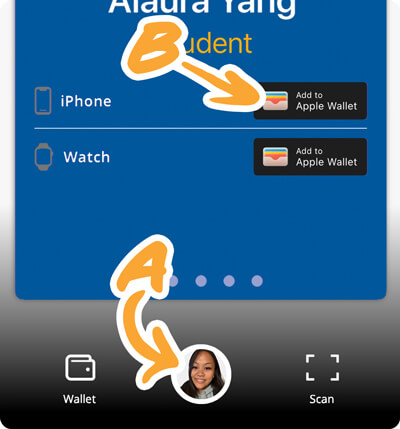
- Open your profile/account by tapping the white circle with your photo at the bottom center of the app (shown as A).
- Tap the “Add to Apple Wallet” button on the bottom-third of the screen (shown as B).
- Tap "Add to Apple Wallet" next to the Phone icon / Watch icon.
- You’ll be sent a new DUO request. Approve and then continue to add the Falcon OneCard credential to Apple Wallet or Apple Watch.
- Tap Next in the top right-hand corner, then read and agree to the Terms and Conditions.
- Your mobile Falcon OneCard credential is now available in your wallet. Express mode is automatically enabled. Tap Done.
Congratulations! Your Mobile ID may now be used for door access, printing and payments...anywhere the OneCard is accepted.
Note: To add your mobile Falcon OneCard credential to Apple Watch, repeat the steps by tapping "Add to Apple Wallet" next to the Apple Watch icon.
If you haven’t downloaded and logged into the TouchNet 360u App, start with the above "Download App" instructions.
- Launch the TouchNet 360u app.
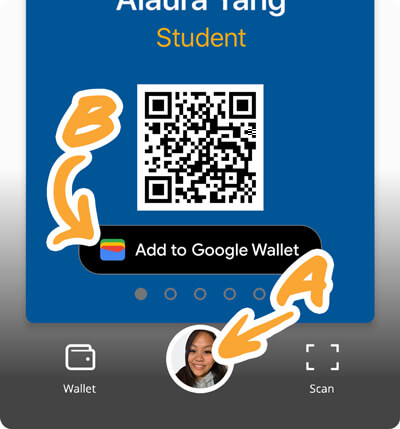
- Open your profile/account by tapping the white circle with your photo at the bottom center of the app (shown as A).
- Tap the “Add to Google Wallet” button on the bottom-third of the screen (shown as B).
- Tap "Add to Google Wallet" next to the phone icon.
- You’ll be sent a new DUO request. Approve and then continue to add the Falcon OneCard credential to Google Wallet.
- Tap Next in the top right-hand corner, then read and agree to the Terms and Conditions.
- Your mobile Falcon OneCard credential is now available in your wallet.
Congratulations! Your Mobile ID may now be used for door access, printing and payments...anywhere the OneCard is accepted.
Quick ‘tap’ tips
- You do not need to open your Wallet or unlock your device for your phone to be read.
- The location of your phone's NFC antenna may be different from others, try tapping the top-back of your device to the reader.
- iPhones using Express Mode can be asleep while being read.
- Android devices should be awake before attempting to be read.
Troubleshooting
Check out our Frequently Asked Questions page for answers.
If you have trouble logging into the portal or using DUO, please contact the I.T. Help Desk in person (Rincker 103), over the phone 262-243-HELP (4357) or by emailing support@cuw.edu for assistance.