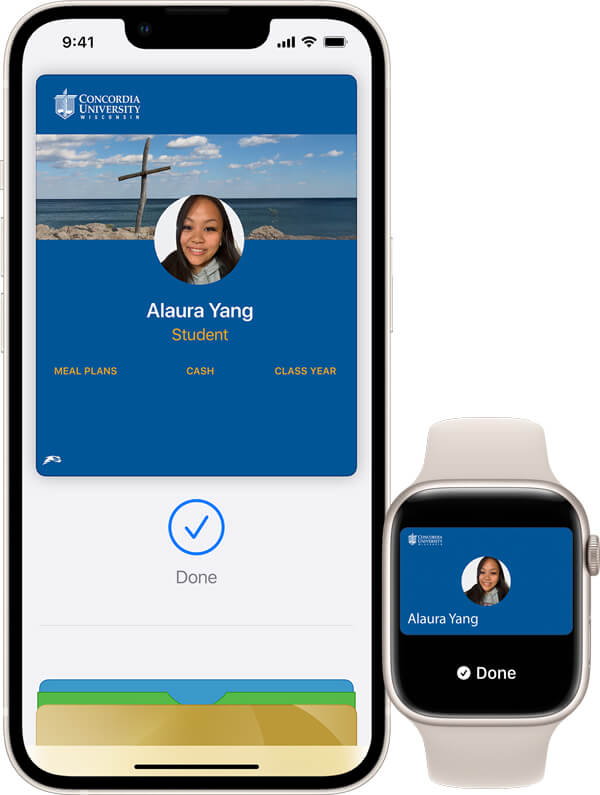
CUW students, your Falcon OneCard is now available in your mobile phone’s wallet app! Anywhere you used to use your CUW ID card, you can now use your iPhone, Android or Apple Watch.
This app allows you to:
- View your virtual Falcon OneCard
- Access authorized doors
- Check your balance or activity
- Add funds with a Visa or Mastercard
- Check out library materials
- Check out at CUW Dining Service locations
Get started
If you haven’t set up a CUW password and enabled DUO please do that before starting this process.
1) Download App
Navigate to the Apple App Store or Google Play Store on your phone and download the TouchNet 360u app to get started with your Mobile ID.
Apple Requirements
- Account: Apple ID signed into iCloud
- Phone: iPhone SE, iPhone 6s, iPhone 6s Plus or later running the latest version of iOS
- Watch: Apple Watch Series 1 or later running the latest version of watchOS
Apple App Instructions
- Download and install the TouchNet 360u from the App Store.
- Launch the TouchNet 360u app.
For the best experience: select "Allow While Using App" for locations; and "Allow" for notifications.
- Enter "Concordia University - WI" in search bar and choose the Wisconsin campus; select Continue.
- Choose whether to allow TouchNet 360u to use biometric authentication (Face ID / Touch ID).
- For Account Type choose "SSO", then click Log In.
- Click OK to be redirected to the Concordia SSO Login page, and log in with your username and password.
- Accept All Cookies, read the Terms and Conditions, then select Agree to continue.
You are now logged into the TouchNet 360u app. In this app, you’ll now be able to manage various aspects of your Falcon OneCard account.
If you haven’t already, you can now add/update your picture for your Falcon OneCard account.
Note: For ‘tap’ functionality, add your Falcon OneCard credential to your Apple Wallet by following the "Connect Wallet" step below.

Android Requirements
- Hardware: NFC capable device
- Operating System: Android 8.0 (Oreo) or newer (originally released in 2017)
- Software: Latest version of the Google Wallet App; enabled and set up
Android App Instructions
- Download and install the TouchNet 360u from the Google Play Store.
- Launch the TouchNet 360u app.
- Enter "Concordia University - WI" in search bar and choose the Wisconsin campus; select Continue.
- Choose whether to allow TouchNet 360u to use biometric authentication (Face ID / Touch ID).
- For Account Type choose "SSO", then click Log In.
- Click OK to be redirected to the Concordia SSO Login page, and log in with your Concordia credentials.
- Accept All Cookies, read the Terms and Conditions, then select Agree to continue.
You are now logged into the TouchNet 360u app. In this app, you’ll now be able to manage various aspects of your Falcon OneCard account.
If you haven’t already, you can now add/update your picture for your Falcon OneCard account.
Note: For ‘tap’ functionality, add your Falcon OneCard credential to your Google Wallet by following the "Connect Wallet" step below.

2) Connect Wallet
For ‘tap’ functionality anywhere the Falcon OneCard is accepted, add your Falcon OneCard credential to your Apple / Android Wallet by following the steps below.
If you haven’t downloaded and logged into the TouchNet 360u App, start with the above "Download App" instructions.
- Launch the TouchNet 360u app.
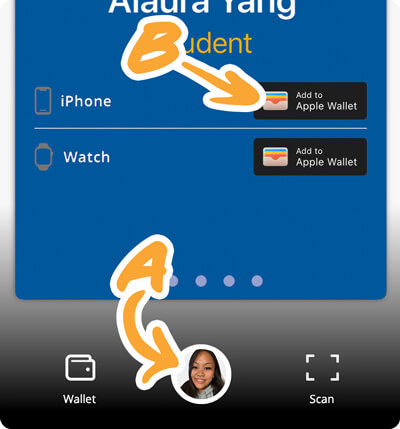
- Open your profile/account by tapping the white circle with your photo at the bottom center of the app (shown as A).
- Tap the “Add to Apple Wallet” button on the bottom-third of the screen (shown as B).
- Tap "Add to Apple Wallet" next to the Phone icon / Watch icon.
- You’ll be sent a new DUO request. Approve and then continue to add the Falcon OneCard credential to Apple Wallet or Apple Watch.
- Tap Next in the top right-hand corner, then read and agree to the Terms and Conditions.
- Your mobile Falcon OneCard credential is now available in your wallet. Express mode is automatically enabled. Tap Done.
Congratulations! Your Mobile ID may now be used for door access, printing and payments...anywhere the OneCard is accepted.
Note: To add your mobile Falcon OneCard credential to Apple Watch, repeat the steps by tapping "Add to Apple Wallet" next to the Apple Watch icon.
If you haven’t downloaded and logged into the TouchNet 360u App, start with the above "Download App" instructions.
- Launch the TouchNet 360u app.
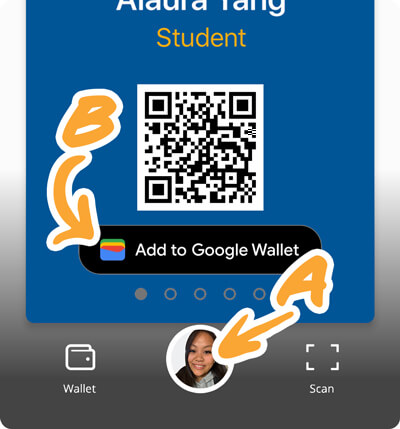
- Open your profile/account by tapping the white circle with your photo at the bottom center of the app (shown as A).
- Tap the “Add to Google Wallet” button on the bottom-third of the screen (shown as B).
- Tap "Add to Google Wallet" next to the phone icon.
- You’ll be sent a new DUO request. Approve and then continue to add the Falcon OneCard credential to Google Wallet.
- Tap Next in the top right-hand corner, then read and agree to the Terms and Conditions.
- Your mobile Falcon OneCard credential is now available in your wallet.
Congratulations! Your Mobile ID may now be used for door access, printing and payments...anywhere the OneCard is accepted.
Quick tips
- The Mobile ID is your official university ID, use it anywhere you would use your old physical ID card.
- The location of your phone's NFC antenna may be different from others, try tapping the top-back of your device to the reader.
- iPhones using Express Mode can be asleep while being read.
- Android devices should be awake before attempting to be read.
- You do not need to open your Wallet or unlock your device for your phone to be read.
Frequently asked questions
There is no cost to use your Falcon OneCard Mobile ID.
Once set up, your Mobile ID can be used even if the device does not have network connectivity as your ID is stored on your device's wallet.
Yes, an approved photo is required.
Currently, our campus licensing applies only to students attending the Mequon campus. We will notify the campus if that changes in the future.
The same way you have always used your plastic card — simply tap the reader with your phone instead of your card.
Currently, there are no off-campus locations that accept your Falcon OneCard. This could change in the future.
Yes. While testing we have not encountered any cases that disrupted the function of the Mobile ID.
All readers on campus should work with your Mobile ID. If you find a malfunctioning reader, please report it using the form below.
No, you may only load the Mobile ID onto one phone at a time. Choose the device most convenient for your day-to-day life.
- Apple Watch: if you have an Apple watch you intend to utilize, choose the phone the watch is connected to.
- Android Watch: not available at this time.
The Mobile ID is a valid form of university identification and is available for all active CUW students. If no longer active, students will not be able to authenticate into the Touchnet 360u app or tap for transactions. On Apple devices, the ID may remain in the Wallet but expired IDs will identify as such by saying, "This card cannot be used".
To visually validate the student ID, make sure the Mobile ID is being presented in the Touchnet 360u app, and not a screenshot. A valid live view of the app will be visually similar to all other current students and have a digital clock at the top of the app that includes the current full date and time down to the second.
If the clock cannot be observed in motion, counting as time passes, this is a fraudulent use of the Mobile ID and should be reported to Campus Safety along with the student’s ID number (F00).
Frequently asked questions: Apple
The Series # for your Apple Watch can be found on the back of the Watch.
Note: the Series 0 Apple Watch is not eligible for this program.
You can use your student ID card on up to two devices (one iPhone and one Apple Watch) that are signed into iCloud with the same Apple ID.
- You should use Find My iPhone to suspend or deactivate your Apple Wallet
- You can also login to TouchNet OneWeb and deactivate your Falcon OneCard
- After logging in, go to Personal Settings and look for Manage Campus ID, then deactivate your card.
You can reactivate a found device that was suspended via iCloud.com or contact the I.T. Help Desk at 262-243-HELP (4357) or email support@cuw.edu.
Your other device will continue to work; however, you should mark the missing device as lost on iCloud.com until it is found.
- Remove your pass from your old device in the Apple Wallet app.
- Contact the I.T. Help Desk in person (Rincker 103), call 262-243-HELP (4357), or email support@cuw.edu to deactivate your old device and then download Touchnet 360u and login again.
When using Express Mode (iPhone 6s or later), your Falcon OneCard will not be displayed with other cards in Apple Wallet for security reasons.
If you are using Express Mode, you do not have to do anything. If you are not using Express Mode, you will have to authenticate each time you access your phone. This is a user security preference.
Note: Express Mode is turned on by default.
On iPhone XS, XS Max, XR, and more recent Express Mode with power reserve is available for up to five hours after the device’s battery needs to be charged.
Frequently asked questions: Android
If you are already using your phone to make contactless tap to pay payments, your device is NFC capable. Not all Android devices are capable of NFC (Near Field Communication) though.
A quick way to check is by opening your device's Settings and using the search bar to search for "NFC".
- If your device is NFC capable, you should see search results that allow you to view and adjust preferences and settings related to NFC.
- If your device has no indication of NFC in the search results it most likely does not have the required capabilities for the Mobile ID.
Your Android phone must be charged and powered on to use the Mobile ID. If your phone battery is too low to power your device, you must charge it before your card will function.
If you lose your device, you need to report it lost. Contact the I.T. Help Desk in person (Rincker 103), call 262-243-HELP (4357), or email support@cuw.edu.
If you still have your old device, deactivate the Mobile ID there first by following these steps:
- Open Google Wallet
- Select the CUW Mobile ID
- Press the three dots to view the back of the card
- Scroll to the bottom and press the "Remove" button to delete the card
If you do not still have the old device, report your situation to the I.T. Help Desk in person (Rincker 103), call 262-243-HELP (4357), or email support@cuw.edu.
If you have not enabled the "require device unlock for use" setting, you do not need to authenticate via passcode, fingerprint, etc. to use your Mobile ID each time.
Troubleshooting
If you have trouble with the app, contact the I.T. Help Desk in person (Rincker 103), over the phone 262-243-HELP (4357) or by completing the form below.